|
1
|
- Dr James Stanger PhD
- Fertaid Pty Ltd
- PO Box 222 The Junction NSW Australia
- T: 61-2-49-631226 Fax:61-2-49-631228
- office@fertaid.com www.fertaid.com
|
|
2
|
- Each slide will run for 10 seconds and before moving to the next
presentation.
- To stop the show, select escape and restart the show from the selected
slide.
- The PowerPoint presentation is an extended version of the online version
- There are 139 slide (!!) so it takes about 30 minutes
- Make your coffee now.
|
|
3
|
|
|
4
|
- Before we start, perhaps it may be best to clarify what QAPonline is …..
- Designed to survey the assessment skills of individual scientists in a
laboratory in a way that provides virtual review of performance and the
capacity to improve
- allow laboratories to compare their assessments skills of all
scientists in either an
- Internal environment
- External environment
- Peer environment
- Selected grouped associations
eg all labs in one country
|
|
5
|
- Furthermore, …..
- Allows each participant to review their own performance
- allow supervisors to review results of all participating staff in each
sub laboratories
- Can and is used as an external QA scheme for accreditation purposes
|
|
6
|
- Furthermore, participation can be a several levels…..
- As a student - for training
purposes but results ignored in data review.
- As an Associate - like a student
in that results are ignored but designed to allow staff in one area to
develop skills in an associated area.
- Professional level - core
participation where subject is part of ones daily working environment
- Peer - where the supervisor
designated one or more staff as the internal reference personnel.
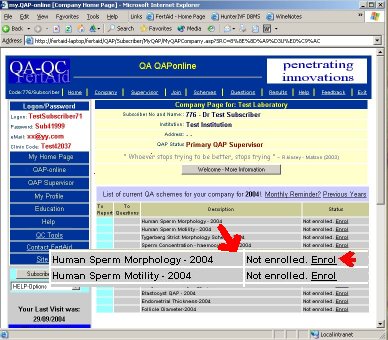
|
|
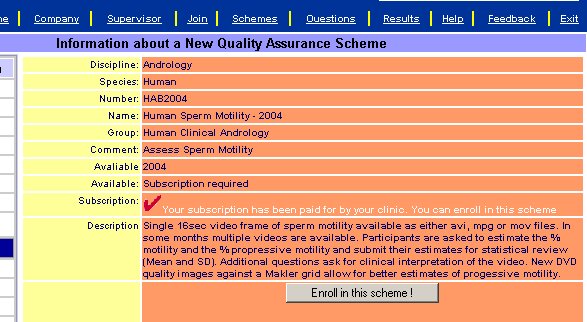
7
|
- The reference range for the site is generated internally at various
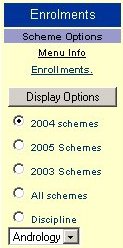
levels
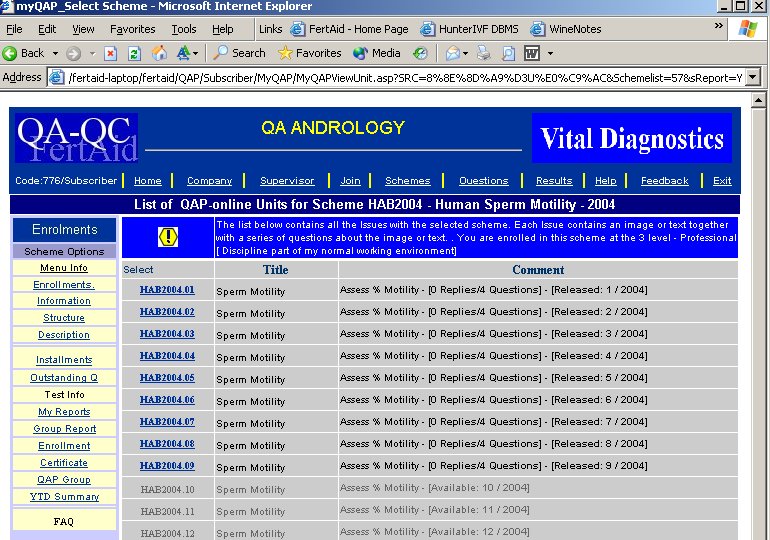
- As a standard comparison - to all other professional.
- Internal Peer Comparison - all
replies are referenced against the INTERNAL pool of peer participants.
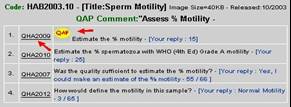
- External Peer Comparison - all
replies are referenced against the total pool of all peer participants.
- Grandfather pool - staff who
have nominated their activity in the area of the scheme for more than
10 years.
- National Peer group - all replies are referenced against the pool of
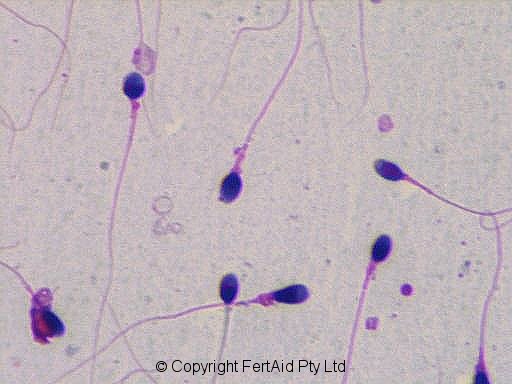
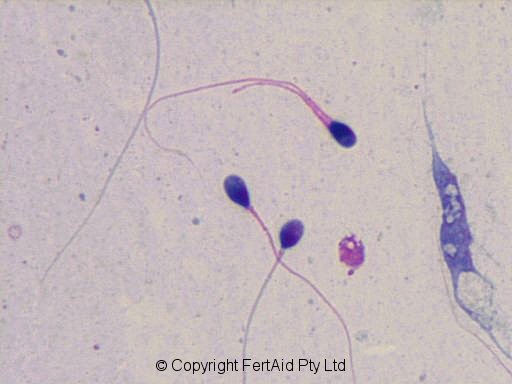
all peer participants in the same country as the participant (in
development).
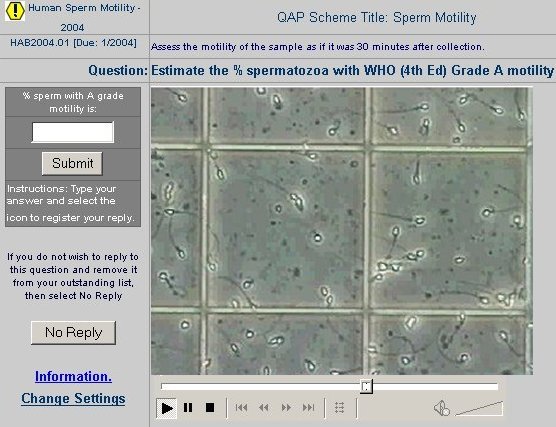
|
|
8
|
- Therefore, QAPonline allows for
- One laboratory participating a one QA program
- Several laboratories within the company unit participating in one or
more than one QA program
- Selective participation of individual staff members in any combination
of QA schemes at any skill level.
|
|
9
|
|
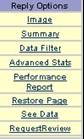
|
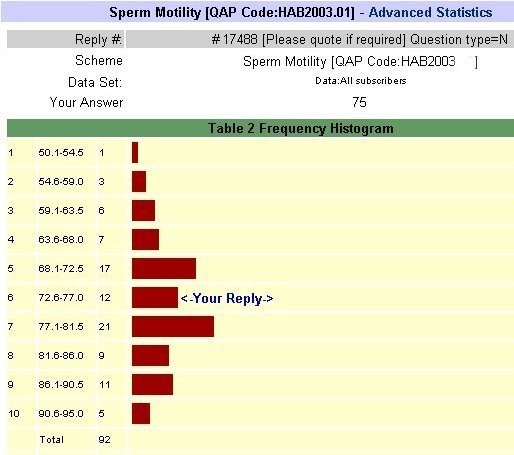
10
|
|
|
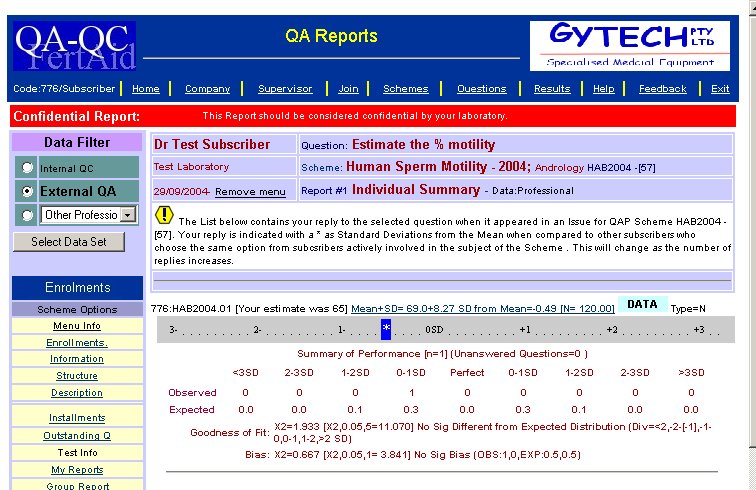
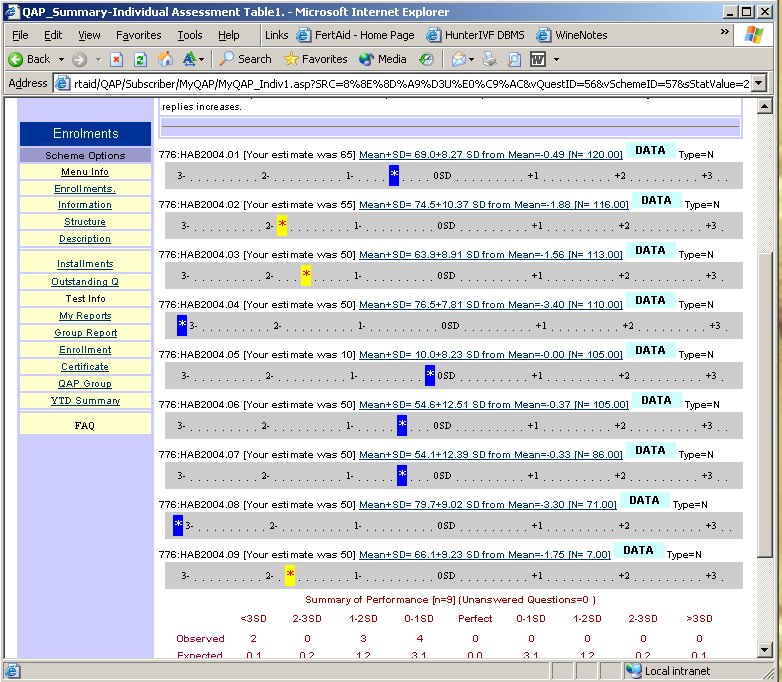
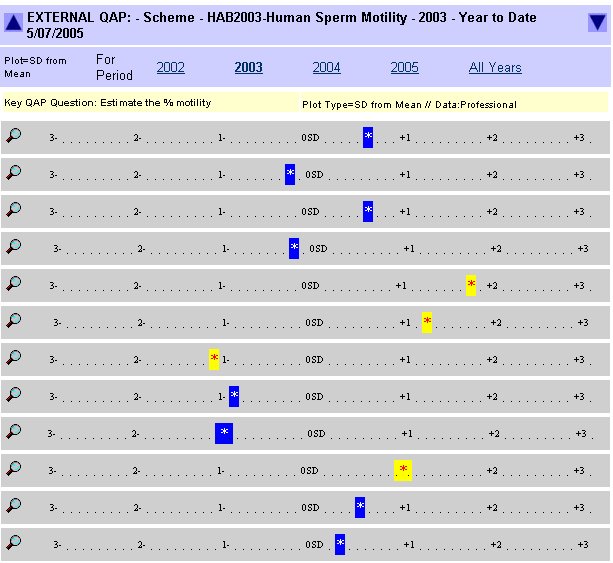
11
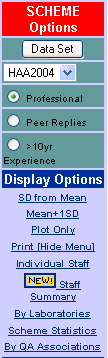
|
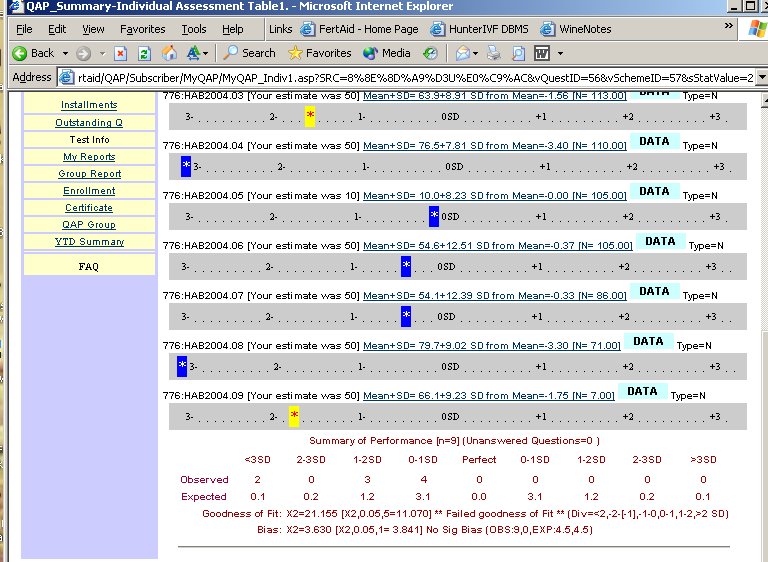
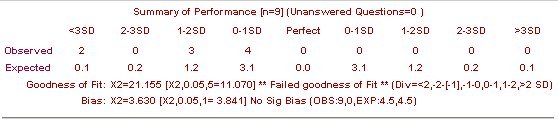
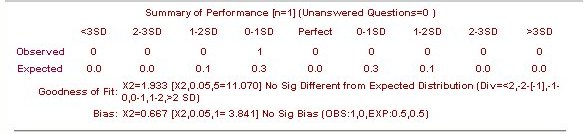
- Individuals may move between clinics
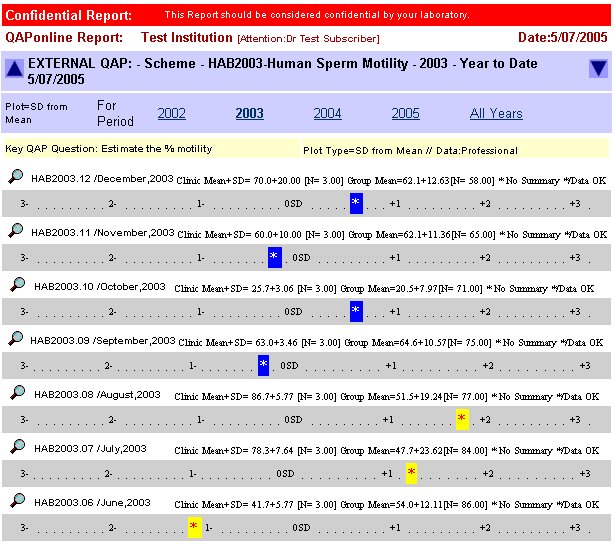
- Personal record (but not clinics) can move with them
- Use in CV as proof of assessment competency.
|
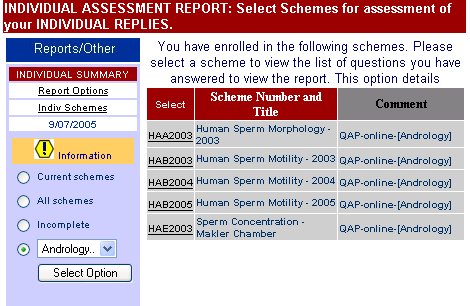
|
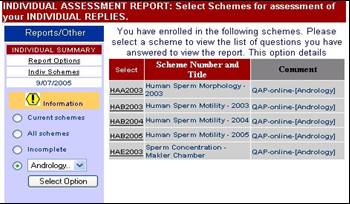
12
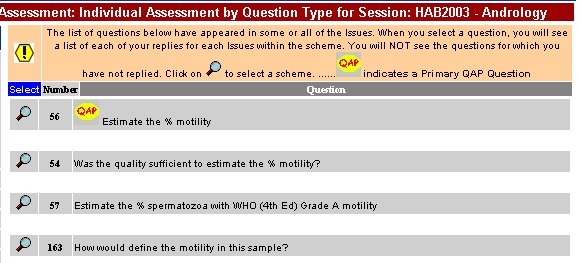
|
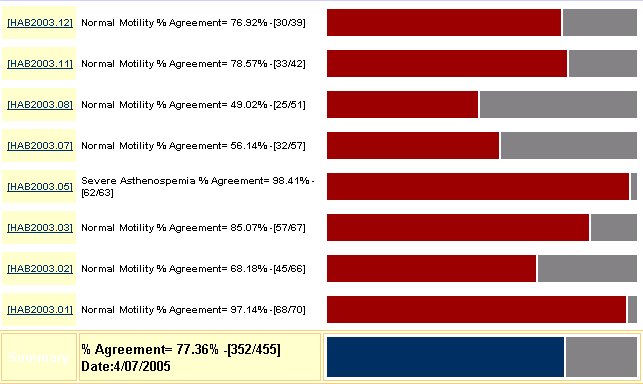
- QAPonline is a series of QAP Schemes that are:
- Grouped into disciplines
- Andrology, Embryology, Ultrasound
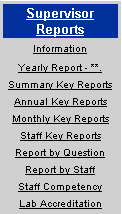
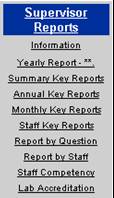
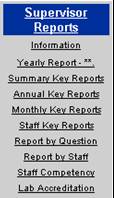
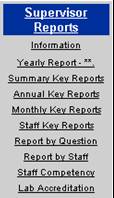
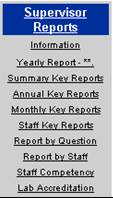
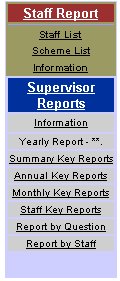
- Other areas eg Professional schemes
- Each discipline contains one or more series
- Sperm Concentration, motility, sperm morphology
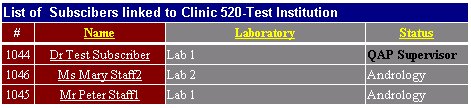
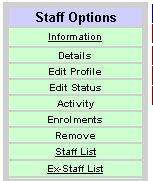
- Each QA series extends over several years.
- Each year is a Scheme.
|
|
13
|
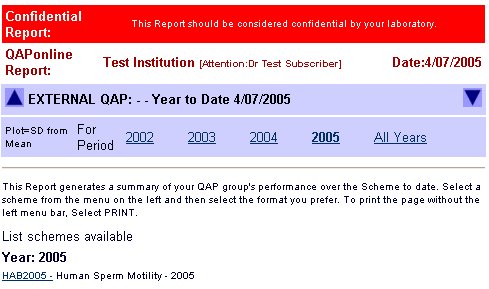
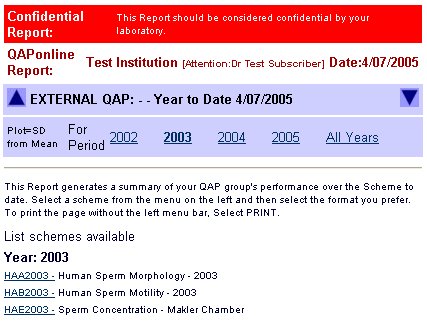
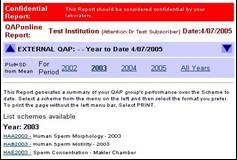
- Each Scheme is
- composed of monthly assessment units
- One or more per month
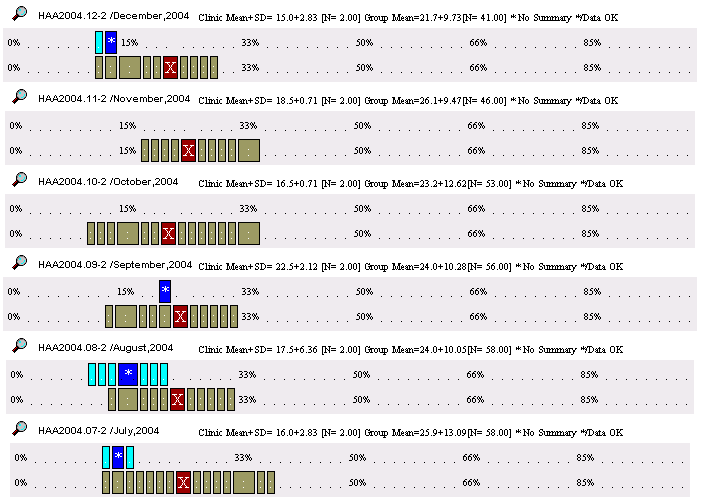
- Each contains
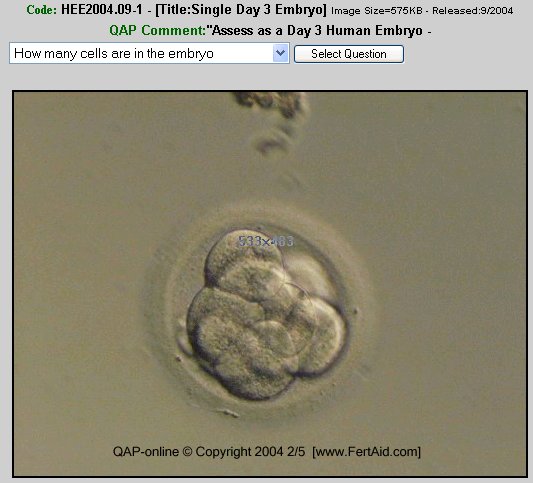
- an image, video or text/ task/ scenario
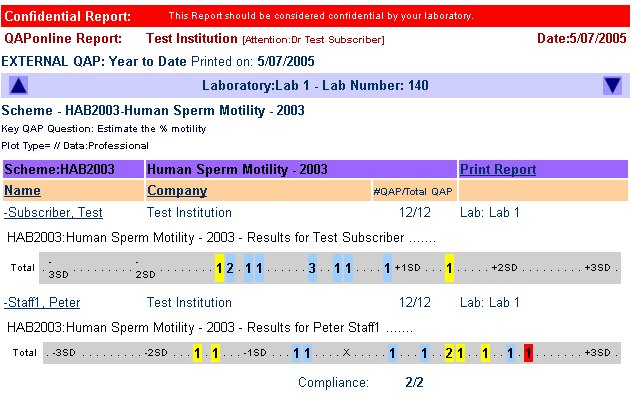
- One or more quiz session
- Each quiz contains
- Several questions
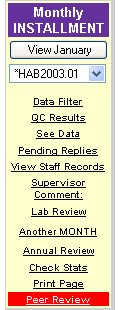
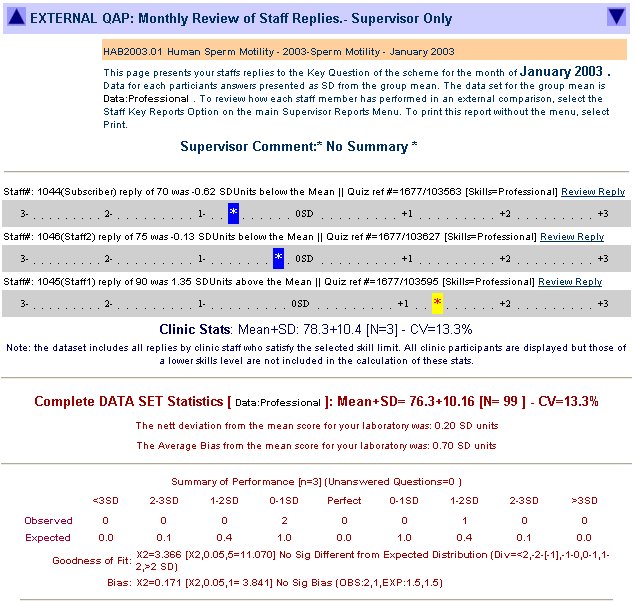
- One is the key question labelled
|
|
14
|
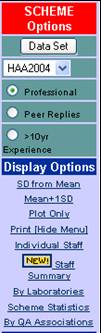
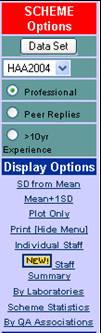
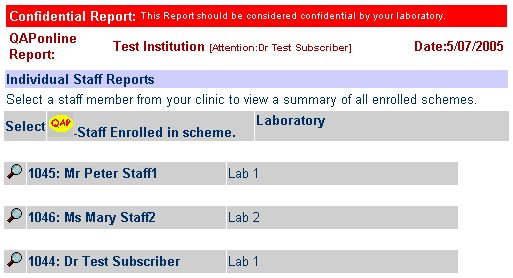
|
|
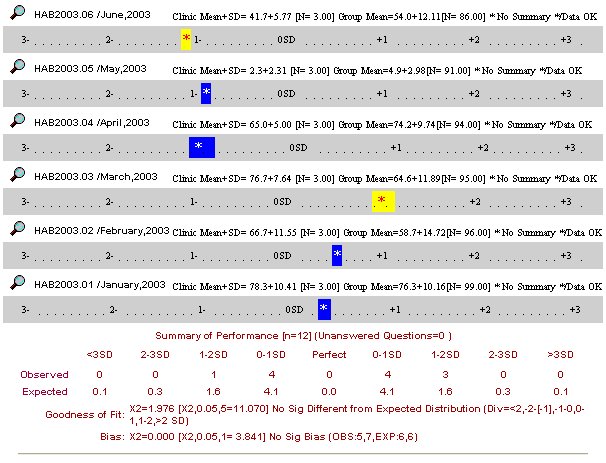
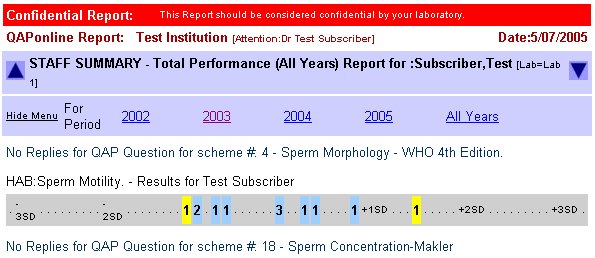
15
|
|
|
16
|
|
|
17
|
|
|
18
|
|
|
19
|
- For QAPonline
- More participants makes the schemes increasingly international and
robust
- For each scientist
- Professional development
- Improved skill based within an external pool
- Expands one CV
- For the clinic
- Awareness of individuals assessment skills
- Improved uniformity in assessment and selection
- Better clinic performance
- For the patient
- Increased uniformity in outcome
|
|
20
|
|
|
21
|
- You can
- Logon
- Register
- Subscribe
- Tutorial
- Utilities
- Virtual lab
- Glossary
- Jokes
- Education
|
|
22
|
- When you have registered, you will receive a logon code and password by
email. Use this to access the site.
- If you have forgotten your code, they can be resent to your current
email address.
- IF you have not registered, select REGISTER
|
|
23
|
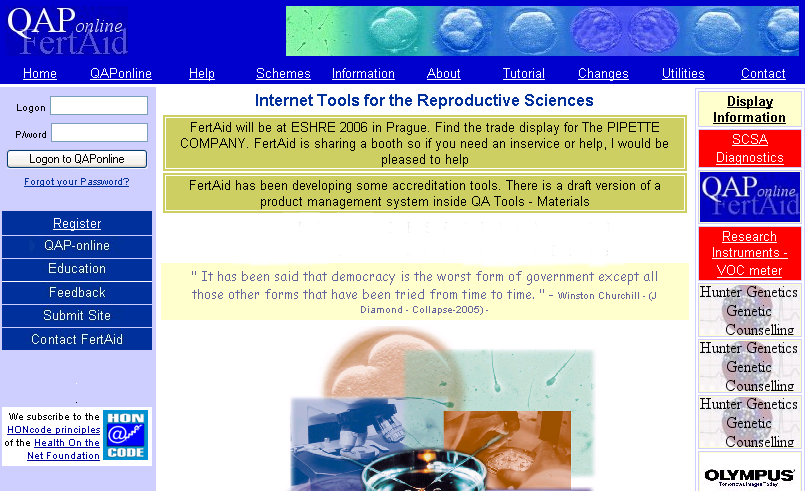
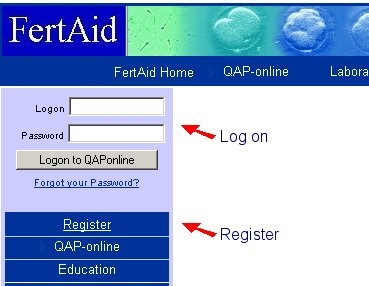
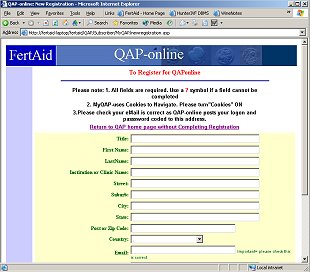
- The first action is to register.
- Locate the register button and select.
- Complete the form
|
|
24
|
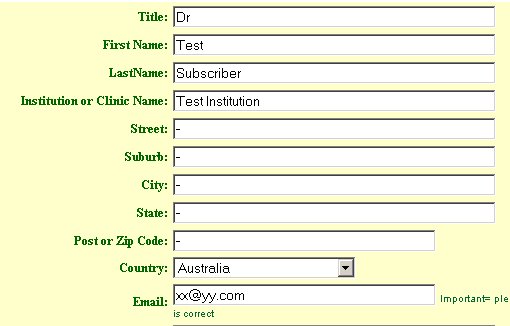
- Ensure all boxes are completed.
- If some fields are inappropriate then use a () . or a (*)
- You are asked
- Your main occupation
- Your preferred video format
- Your preferred language
- Your email address
|
|
25
|
- These options are guides only.
- The video options-
- AVI for windows
- MPEG for windows and Apple
- MOV files for Apple only
- The language is under development but the menus, questions and options
have the potential to be multilingual
|
|
26
|
|
|
27
|
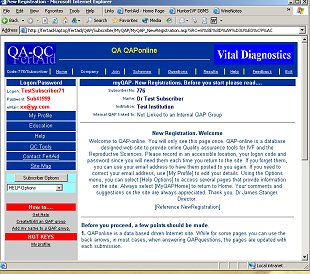
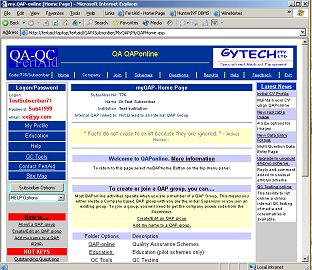
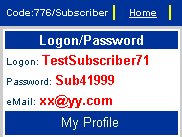
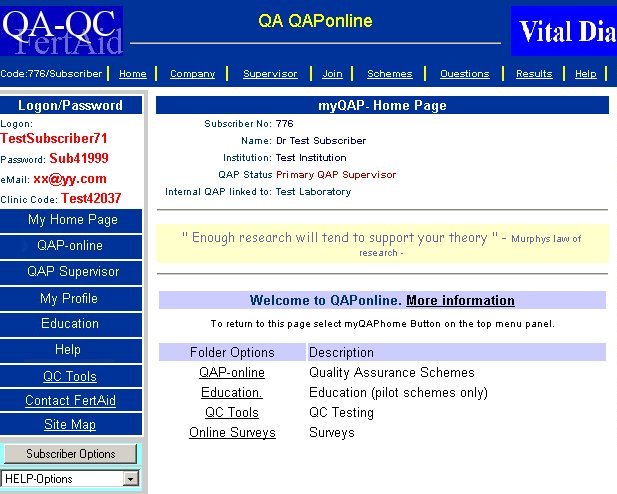
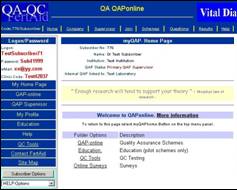
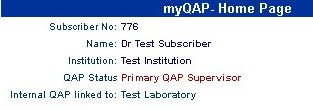
- When you logon the first page is always the home page.
- On the top left hand side is you unique
- These were emailed to you on registration
|
|
28
|
- The logon code and password to enter QAPonline are found in the top left
hand corner of the home page
- Your current email is also displayed. If this is incorrect, you can
change it by selecting My Profile
and Update Details
|
|
29
|
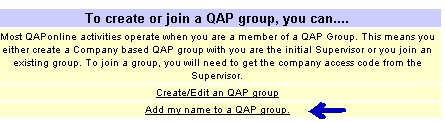
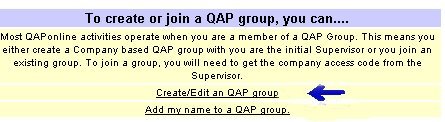
- QAPonline works as a company based QA system.
- To create a QAP group you first need to nominate yourself as a
Supervisor.
- Locate the “Create a QAP group” link
- IF the QAP group exists and you wish to join it - then select “ADD MY NAME TO A QAP GROUP” to join.
|
|
30
|
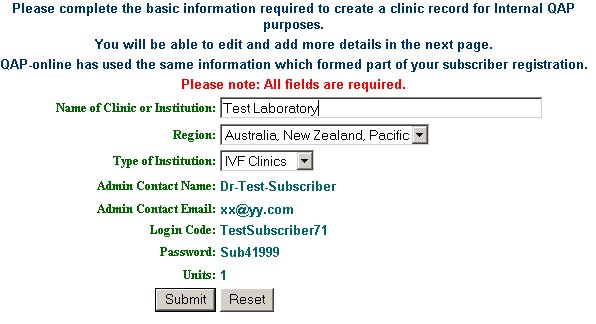
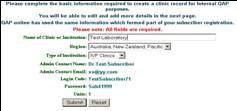
- If you nominate yourself as the QAP Supervisor then you will end with
this screen whereby the name and supervisor are used to create the group
|
|
31
|
|
|
32
|
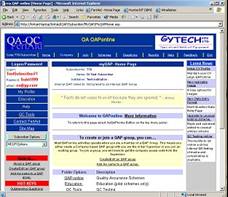
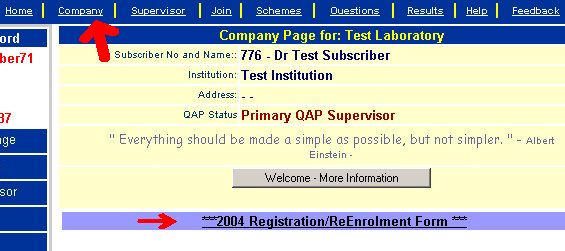
- When you are a member of a QAP group, the top menu bar will identify
both the home and company icon
|
|
33
|
- There are two ways to add staff to your QAP group
- 1. ask each to register and select
- ‘Add my name to a QAP Group’ on the home page.
|
|
34
|
- If you select
- ‘Add my Name to a QAP group’
- then..
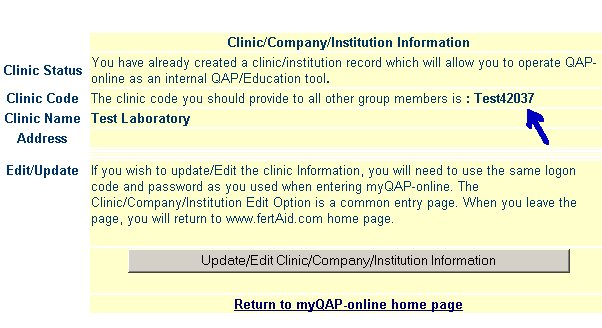
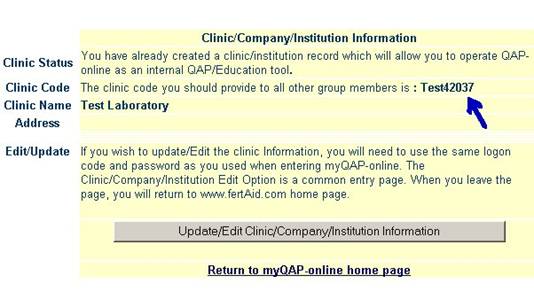
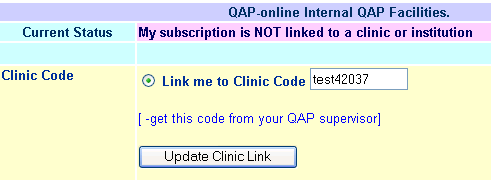
- You are asked to provide the clinic code
and then select Update Clinic Link.
- You obtain the clinic code from your supervisor
|
|
35
|
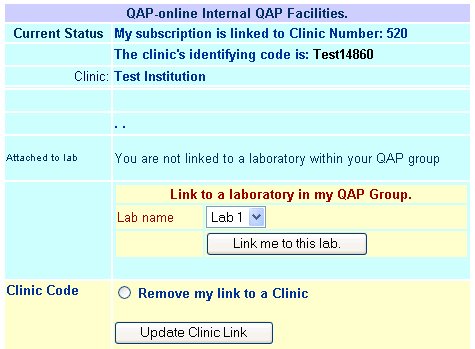
- Once you are a member of a QAP group, you can nominate which laboratory
you work in ( if the supervisor has created a record of your lab)
- Note, your name will appear on a clinic staff list for all to see…
|
|
36
|
- As supervisor, you can select ‘Add
Staff’ from your supervisors menu and add a new staff member to your
group dynamically
- You can also create a staff notice to send to staff about the
subscription –
|
|
37
|
- Your identification will indicate both your name and clinic and the QAP
group to which you have attached.
|
|
38
|
- When you are a member of a QAP group, a Company link will appear on the
upper menu.
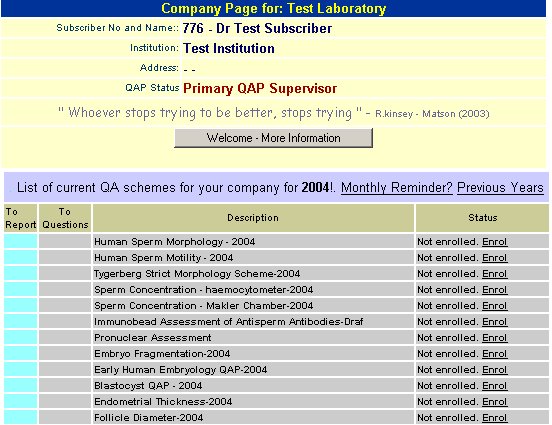
- Select Company button to see the QA scheme that are available.
- When you first create the group, there are no QA schemes available.
|
|
39
|
- To subscribe to one or more schemes… you need to
- 1. Create the QAP group with a nominated supervisor
- 2. Decide on which schemes and which staff are to be involved
- 3. Decide on the type of subscription (see next slide)
- 4. Find the subscription form
- 5. Complete and post with payment (various formats)
- 6. Send to FertAid.
- 7. On receipt, FertAid will provide access to the scheme BUT
- 8. Each staff member needs to enrol in each scheme at the correct skill
level.
|
|
40
|
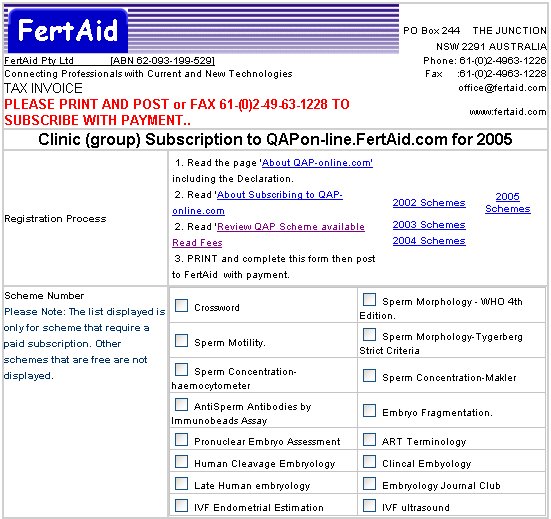
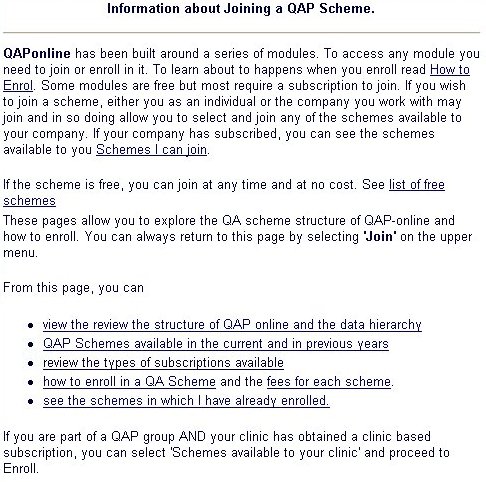
- Select Join
- Select Enrollment Forms to generate a customised Subscription form.
- Use this menu for other information on
- Fees
- Types of subscription.
|
|
41
|
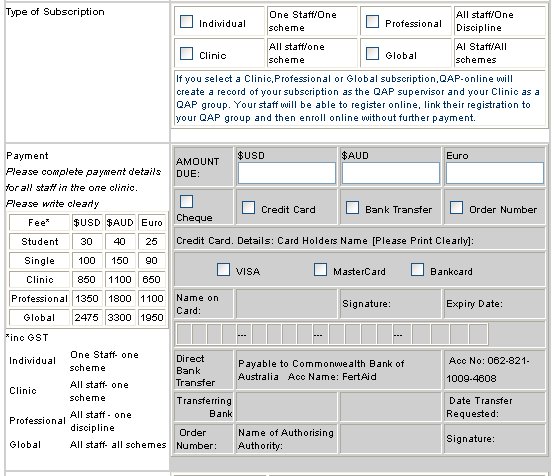
- The upper part of the form requests
- Which year subscription you wish
- Yes you can enrol in previous schemes
- Schemes of interest if you plan to enrol in selected or limited number
of schemes
|
|
42
|
- The lower half of the form requests information on
- Bundled subscriptions
- Type of payment
- Payment Currency.
|
|
43
|
- Individual - One scheme, one
person
- Clinic - One scheme , all staff
- Professional – All schemes in one discipline eg Andrology, all staff
- Global - All schemes in all
discipline for all staff
- Contact FertAid for advice if needed
|
|
44
|
- QAPonline allows individual subscriptions or clinic wide subscriptions
where all appropriate staff members may participate.
- There are several free schemes, early QA schemes or training schemes
that are not available through the clinic wide subscriptions.
- These can be access on an individual basais
|
|
45
|
|
|
46
|
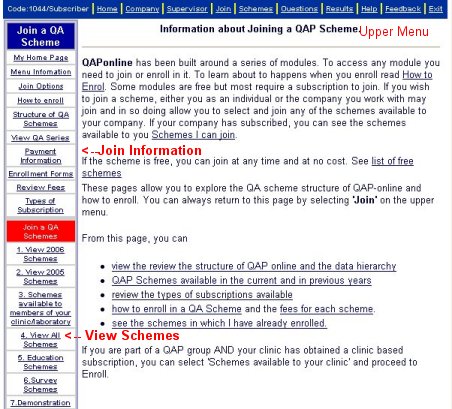
- Find the Link on the upper menu called
- Join
|
|
47
|
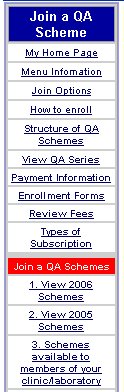
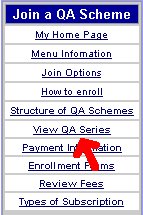
- The JOIN menu provides background information on the schemes, enrolment
forms and types of subscriptions. Access ‘VIEW QA SERIES’ for a full
list or
- Access one of the subgroups listed on the lower menu
|
|
48
|
|
|
49
|
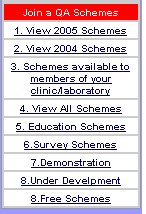
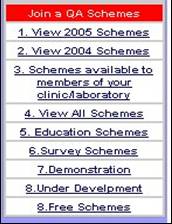
- You may find a scheme of interest to you from one of these options.
|
|
50
|
- To find a QA scheme of interest select
VIEW QA Series
- This will break the schemes down into their master series portfolios
|
|
51
|
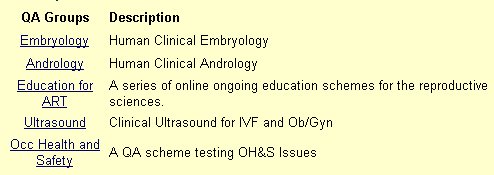
- Selecting View QA Series produces a list of QA disciplines that contain active schemes.
- Remember that the structure of QAPonline is
- Discipline (all series in one discipline)
- Series (All schemes on 1 topic)
- Scheme (annual scheme)
|
|
52
|
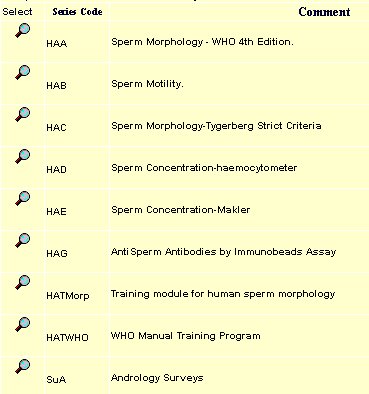
- Selecting a discipline then generates a list of all the QA series in a
discipline. In this example, all the series in Andrology are displayed.
- Some are QA schemes others are educational
|
|
53
|
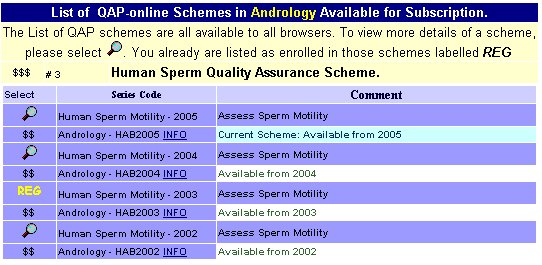
- When you select a QA series, the annual QA schemes for the series are
displayed.
|
|
54
|
- If you plan to join via a company subscription, you need to complete a
subscription form and send it to FertAid.
- FertAid will provide access to the schemes
- The schemes will become available on the Company Page.
- But each staff member need to join each scheme separately and at the
appropriate skill level
|
|
55
|
- After you have completed the subscription form and submitted this to
QAPonline with payment , the schemes requested will appear on the
company page
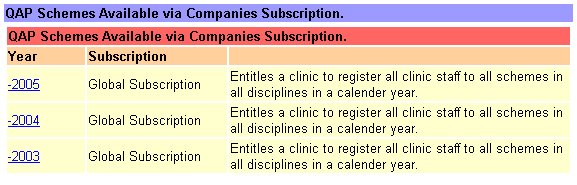
- You can access previous years subscriptions by selecting ‘Previous
years’
|
|
56
|
- If your company has subscribed over several years, you will have access
to the previous schemes. Just select the year and the scheme and enrol
in the standard way.
|
|
57
|
- It seems like there has been a lot of work just to get started.
- This may be true for the QAP Supervisor who needs to decide the type of
QA and who should participate
- For each staff member, all they need to do is register and join the
schemes
- This takes about 5 minutes after one has worked out how to do it.
|
|
58
|
- The essential aspect of QAPonline is that it is based upon an individual
participation.
- This means that each participant has to enrol in each relevant scheme
each year.
- There is a reason for this…..
- QAPonline allows a staff member to enrol at different skill levels over
a period of time.
- That is as they develop proficiency, this should be reflected in their
skill level
|
|
59
|
- There are four level of enrolment.
- Student - no previous experience
- Associate - working in the
industry but not in the subject of the QA scheme.
- Professional - actively working
in the subject of the QA scheme.
- Peer - selected by QAP
supervisor to represent the skill level for internal benchmarking.
|
|
60
|
- This means that a staff member may be a professional in one scheme, a
student in another and a peer in a third scheme.
- Also that a staff member may be a student in one year and after
demonstration of competency, a professional in another.
|
|
61
|
- There are several ways to join a QA scheme
- The easiest is to select ENROL from the scheme list on the company page.
|
|
62
|
- From the Company Page Select one scheme at a time and select ‘Enrol’
|
|
63
|
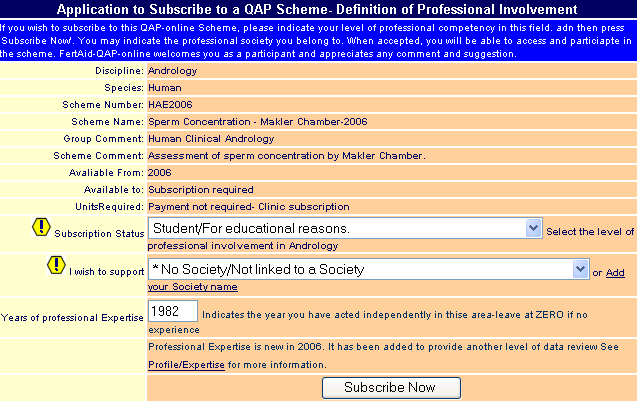
- There are 2 screens. The first identifies the scheme and indicates if
access to the scheme is free , has been paid by your company or needs
payment (not shown).
|
|
64
|
- The second screen asks for
- your skill level
- A society you wish to acknowledge
- The year you were approved to work in this area without supervision.
|
|
65
|
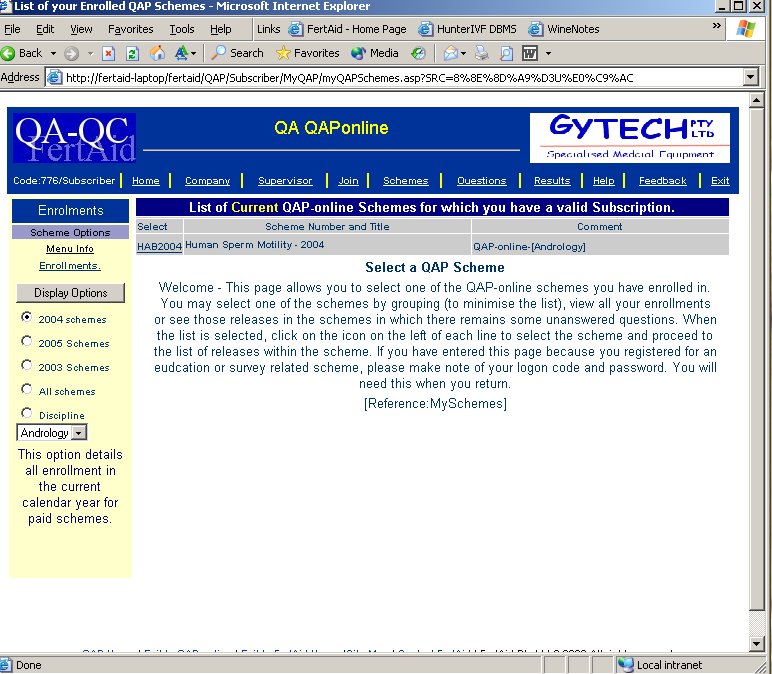
- The list of scheme that you are enrolled in is listed under the Schemes
Link found on the upper menu.
|
|
66
|
- The Enrollment menu allows you to navigate between different list
options including
- Different years
- Different disciplines.
|
|
67
|
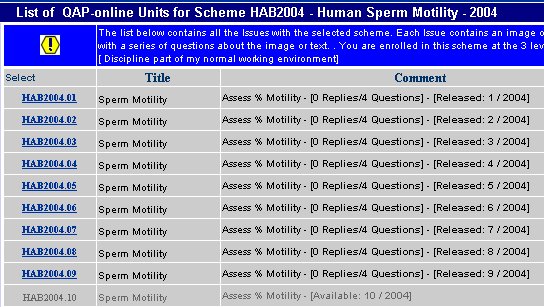
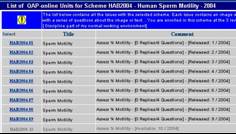
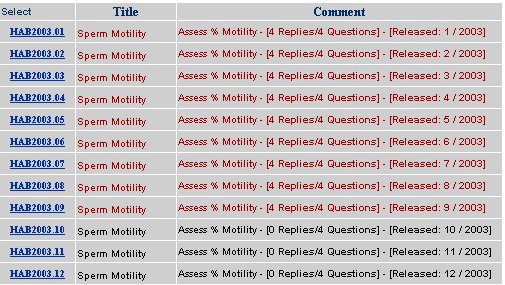
- Selecting the hyperlink to a scheme generates a list of all the monthly
assessment tasks for that scheme
- This image demonstrates that all the instalments are displayed but
- Only those for release can be accessed.
- Instalments for future time periods can only be accessed when the time
set points have been reached.
|
|
68
|
- Note all instalments carry the scheme nomenclature eg HAB2004 - HAB2004.01, etc
|
|
69
|
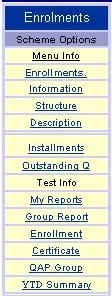
- The scheme menu allows information on
- The instalments
- Outstanding questions
- Reporting options
- Certificates
|
|
70
|
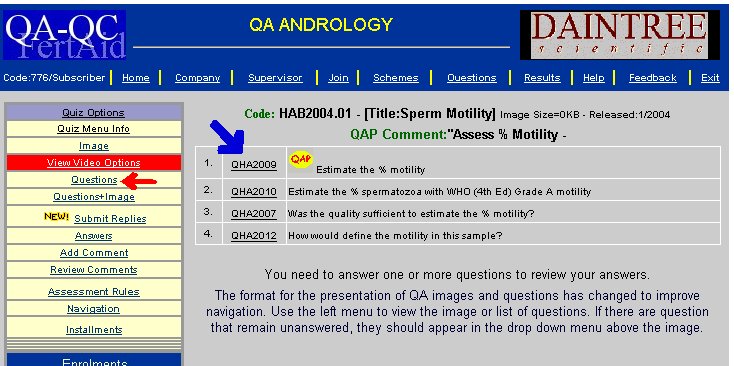
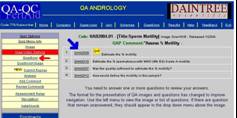
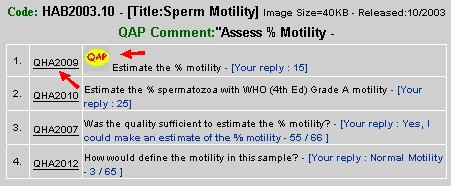
- Selecting a Quiz from the list of Assessment tasks displays the list of
questions .
- Note one question is the QAP question.
- The balance are supportive or educational
- All can be reviewed.
|
|
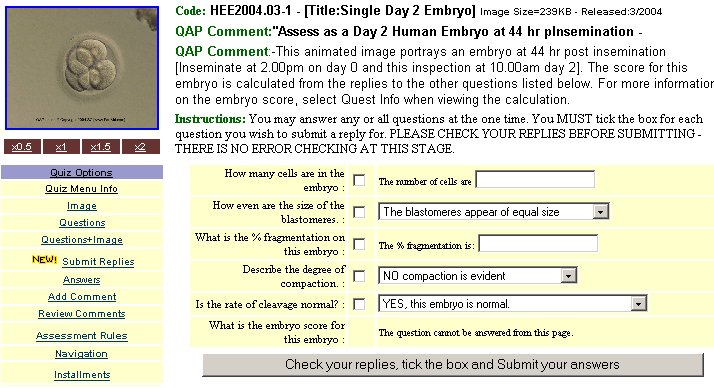
71
|
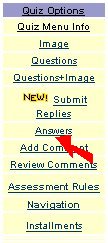
- The quiz menu allows you to
- Review the questions
- Review the image
- Review both
- Submit all replies at one time
|
|
72
|
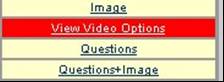
- Some instalments have multiple images.
- To see the multiple images select
- Open Slide Show or
- View Video Options
|
|
73
|
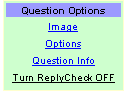
- You can toggle between
- the image
- The questions
- Both
- Question information if present
- Reply check
|
|
74
|
|
|
75
|
- Animated gif files
- These rotate continuously
- Reflect viewing an object through several fields of view
|
|
76
|
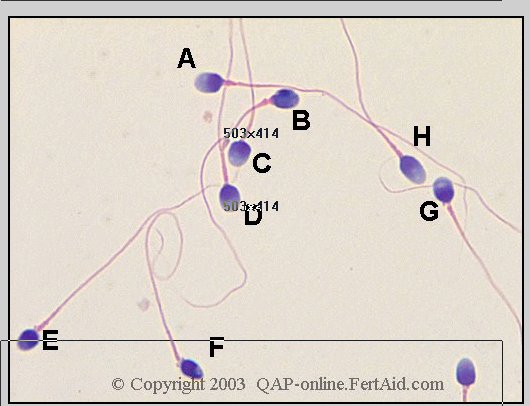
- A slide show of multiple slide to reflect several views of the one slide
eg for sperm morphology
|
|
77
|
|
|
78
|
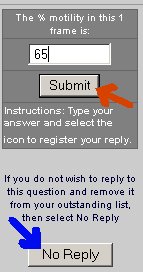
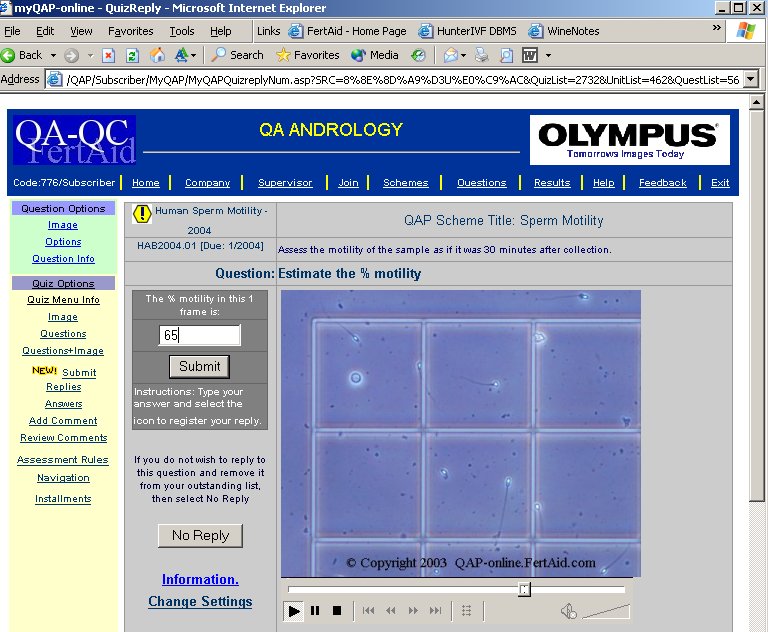
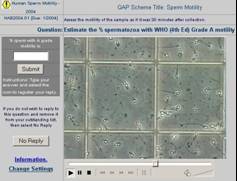
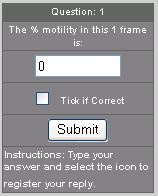
- Questions can be numeric
- Note that if you do not wish to provide a reply but acknowledge the
question, you can mark the questions No reply
|
|
79
|
|
|
80
|
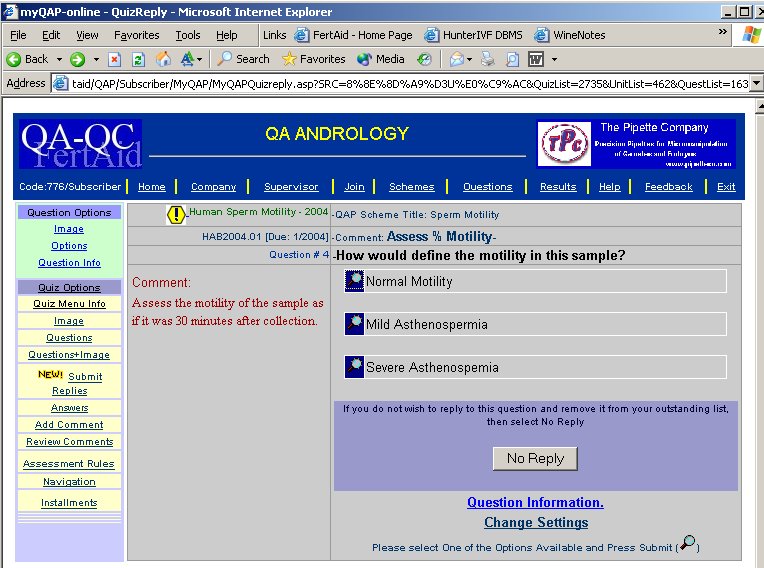
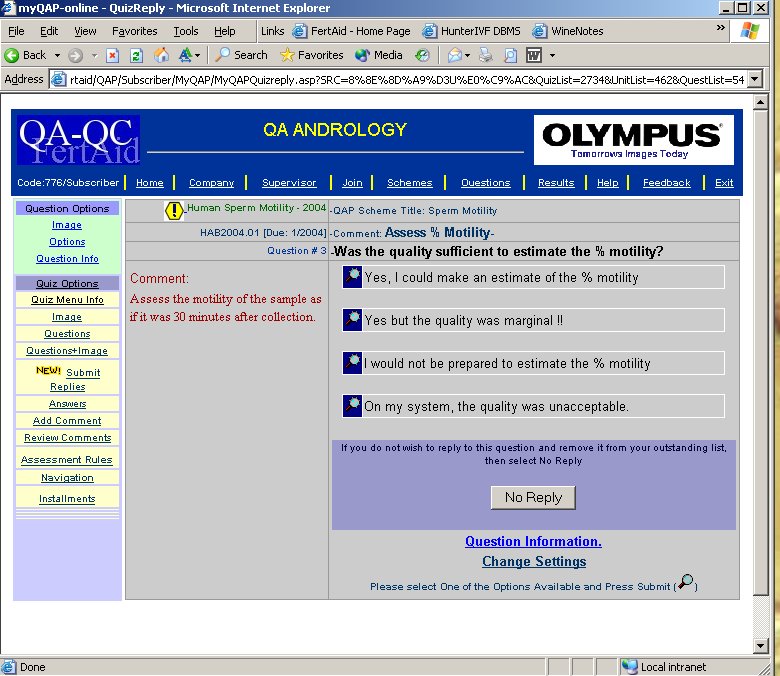
- Multiple choice
- When you have replies to one question on the list, the next unanswered
question appears until all have had been replied.
|
|
81
|
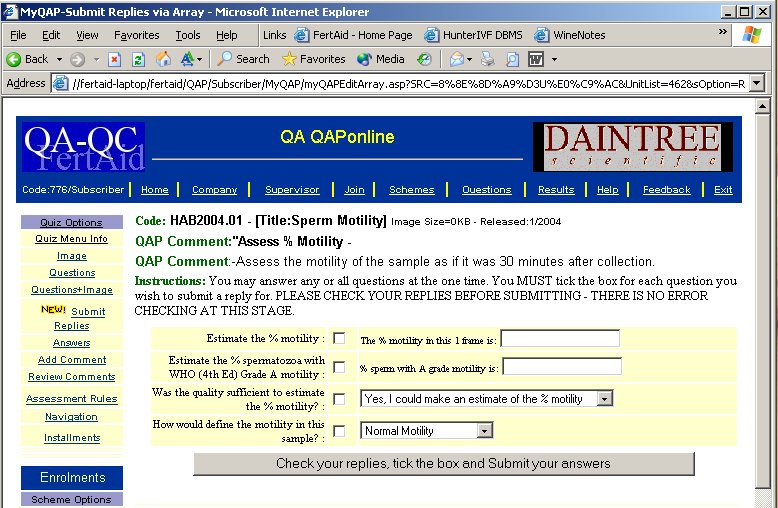
- You can reply to all the questions at one time if you wish
|
|
82
|
- You can attach and resize the image if you need further magnification.
|
|
83
|
- You can replay the videos as often as required.
|
|
84
|
- You can turn on/off reply checking where you need to confirm the reply
submitted is your correct assessment
|
|
85
|
- When you have replied to all the questions in an instalment,
- The question list displays your reply
- If you select the hyperlink to a question then…
|
|
86
|
- You can also turn on/off the visual summary of which units you have
completed.
|
|
87
|
- The list of answered questions can be accessed via the ANSWERS option on
the quiz menu
|
|
88
|
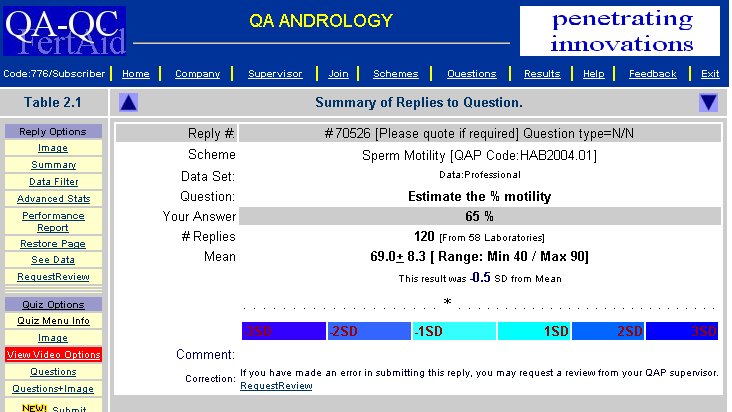
- One great feature of QAPonline is that it allows you to review your
reply as soon as submitted.
- The summary is presented as a feature of the current data set.
- The data set will continue to grow with each submission.
|
|
89
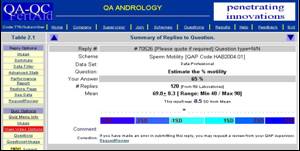
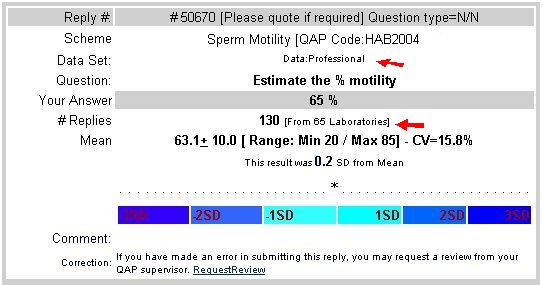
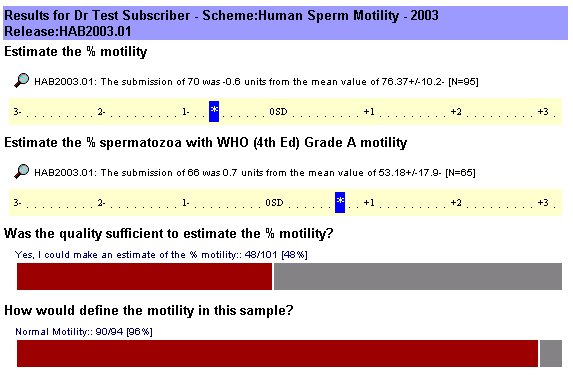
|
- The reply window has several key points
- The data set
- The breakdown in the participants
- Statistics
|
|
90
|
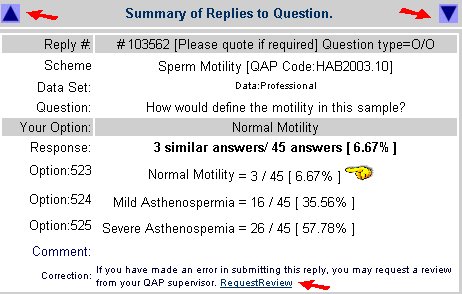
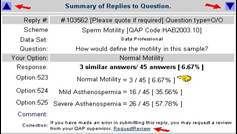
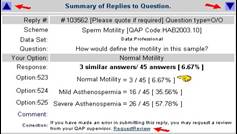
- You can toggle between each reply using the blue arrows
- Multiple choice option information and your reply
- Request a review
|
|
91
|
- Request a review
- If you submit a reply you believe was unintentionally wrong then you can request the
administrator to review and correct if appropriate
|
|
92
|
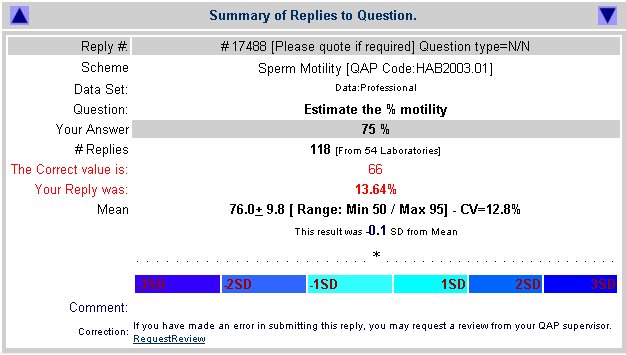
- In some cases a correct reply may be available.
- In such cases, the correct reply and the Z score are displayed.
|
|
93
|
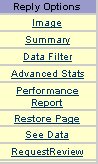
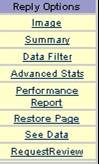
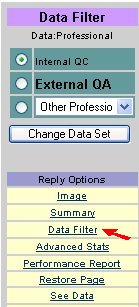
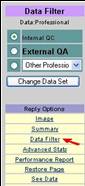
- The reply menu allows you to review the data set as either
- Internal replies only
- All professional replies
- Select DATA FILTER
|
|
94
|
- The reply menu also allows you to access an advanced statistics module
|
|
95
|
- The advanced module provides some basic data review including a
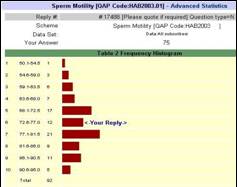
histogram of replies.
|
|
96
|
- From the reply menu, a review of your performance for the whole scheme
YTD is possible. Select Performance Report. This only reviews the QAP flagged
question
- You can also create a new window with the actual data set available for
your own number crunching.
|
|
97
|
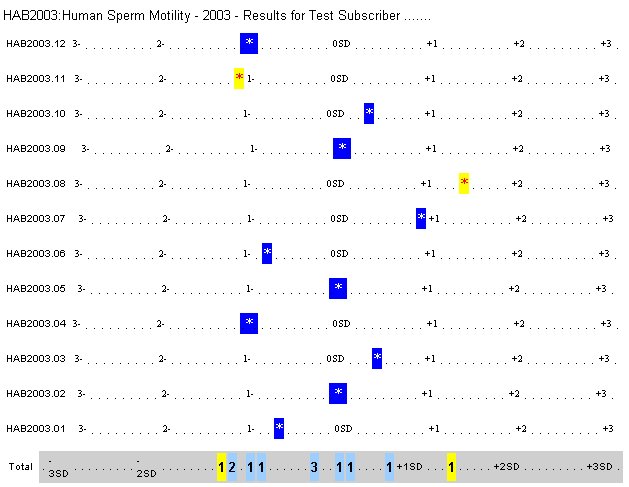
- The performance report is based upon the QAP question in the instalment
|
|
98
|
- The standardised reporting module uses the QAP question for the scheme
and is portrayed as SD units from the mean
You can toggle between Internal and external Data sets at will.
|
|
99
|
- The standard reporting is SD units from the group mean
- Other information includes
- Mean and SD
- Range
- Max & Min values
|
|
100
|
- The performance report is created dynamically and is accessible at all
times.
- There is a summary created at the end of the report.
|
|
101
|
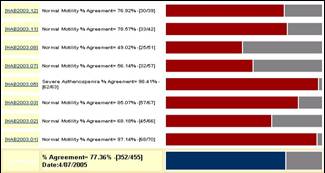
- Your performance for each instalment is described by a colour bar
depending on the number of SD units your reply was from the group mean.
|
|
102
|
- The statistical summary is also generated dynamically with all current
data.
- Test for goodness of fit (against expected normal distribution) and
bias.
|
|
103
|
- You can also review your results by selecting Results from the upper
menu
- This allows you to monitor your own performance for all questions not
just the QAP question.
|
|
104
|
- Selecting results opens the results menu.
- This allows you to review your performance by individual schemes
- By monthly contributions
- By annual performance
|
|
105
|
- Selecting Individual review
- Select a scheme of interest
|
|
106
|
- Selecting a scheme displays all the question in the scheme to which you
have submitted a reply
- Selecting the QAP question generates a report the same as the previous
performance summaries
|
|
107
|
- Selecting a multiple choice question generates a report as shown whereby
the proportion of other respondents who replied the same as you is
displayed.
|
|
108
|
- A key aspect of QAPonline is the capacity to monitor and review the
assessment performance of each staff by the QAP Supervisor
- If you are the nominated supervisor, a Supervisor link will appear in
the upper menu.
|
|
109
|
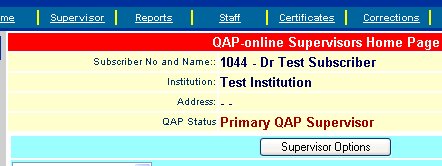
- On the company page, you are
displayed as the QAP supervisor.
- In some clinics, the Scientific Director is not the QAP supervisor due
to work load but
- He can be labelled as a Co-Supervisor
- This allows him to see the reports but not manage staff
|
|
110
|
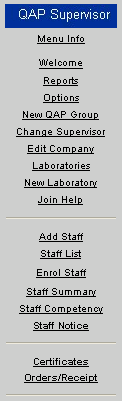
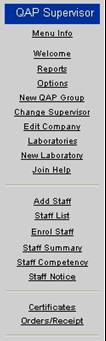
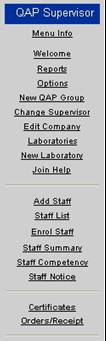
- The supervisors menu is broken down into
- Reporting modules
- Staff management modules
- Laboratory management modules
|
|
111
|
- As supervisor you can
- Edit the company details
- Create and manage each laboratory
- Create online certification for accreditation of schemes and staff
- Manage orders and receipts
- Change supervisors as required.
|
|
112
|
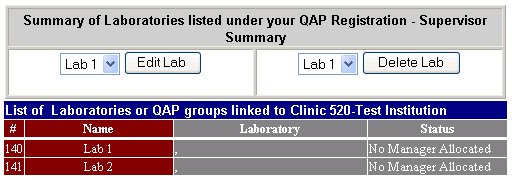
- Laboratory Management tools allows you to
- Create a new laboratory
- Edit an existing laboratory
- Delete an existing laboratory
- This is relevant for larger organisations
|
|
113
|
- As supervisor you can manage staff by
- Add new staff
- Alter personnel details
- Enrol staff and allocate skill levels
- Review participation and performance
|
|
114
|
- Staff management tools allow you to remove staff that leave to
organisation
|
|
115
|
- This is the key menu within QAPonline.
- The reporting module is available to both
- QAP supervisor
- Co-Supervisors.
|
|
116
|
- The key feature is the capacity to review dynamically the performance
of your laboratory
- in an external environment
- In an internal environment
- Individual staff
- Individual laboratories
- Individual Assessment skills
|
|
117
|
- You can interrogate the data by
- Scheme
- Each staff member
- Each question
- Individual laboratories.
- Print EQA reports on demand with YTD data.
- Create and manage staff Competency certification
|
|
118
|
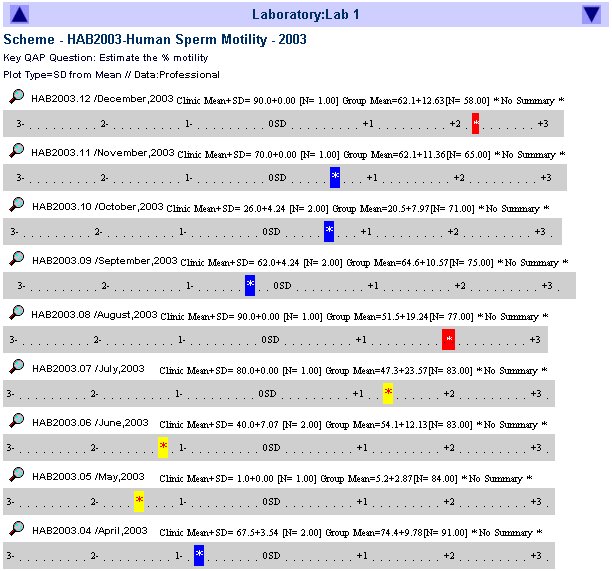
- The key function is the Annual Key Reports
- This creates dynamically
- a YTD summary of the clinics mean data by instalment
- This can dissected by month or laboratory or staff
- Current or previous year reporting
|
|
119
|
- Selecting Annual key reports allows you to access all QA schemes in the
selected year
|
|
120
|
- You can toggle between years using the little blue arrows.
- Select the hyperlink for the scheme you want
|
|
121
|
- This generates a report with the mean of your clinics assessment values
by professional staff members against all the professional in the pool
- The report is the same as the individual performance reports
|
|
122
|
- Key features of the Annual Key Report are:
- Multiple reference comparison
- All professional
- Peer Professionals
- Grandfather professionals
- Various graphical displays
- Review by Staff
- Review by Laboratory
|
|
123
|
- Other Supporting features of the Annual Key Report are:
- Scheme statistics including
- Measurement of Uncertainty for each scheme
- QA Associations
- Any clinic can create a subgroup within the data set eg all European
laboratories
|
|
124
|
- The report
- Displays your clinics stats
- The overall stats
- A Supervisors comment
- A summary at the end of the report.
- The measure is your clinics mean value as SD units from the total data
set.
- You can access each months data
- All student and associate data is not included.
|
|
125
|
- Alternatively,
- A graphical report for reply distribution for your clinics and all
professionals
- Shows mean and 1 SD for both groups
|
|
126
|
- Compacted report without statistical information
|
|
127
|
- Selecting the monthly icon, opens a monthly reporting module
- This allows the Supervisor to comment and “approve” a monthly QC data
submission.
- For accreditation purposes.
|
|
128
|
- The monthly report
- Identifies each staff members contribution
- Compares the clinics data to the global pool
- Displays students reports (not included in the summaries).
|
|
129
|
- From each month report, you can review the results for all questions in
a selected instalment for a selected staff member.
|
|
130
|
- From the main key report, you can review the performance of each
laboratory
|
|
131
|
- You can also review the annual performance of each staff member (see
below) in each laboratory
|
|
132
|
- From the Supervisors Reports Menu, you can select Staff Summary
|
|
133
|
|
|
134
|
- Selecting a staff member provides a staff report for all schemes in a
selected year.
- Data is the SD from global mean for each instalment as a one bar summary
or…..
|
|
135
|
- .. An expanded report for each instalment.
- A Summary is located at the end of the report.
|
|
136
|
- This tutorial has illustrated the mechanism
- To create and manage a QAP group online
- To Subscribe and enrol staff members
- To different schemes
- At different skill levels
- For an individual to participate and review performance
- For a Supervisor to coordinate and manage a clinics QC/QA program for
assessment skills.
|
|
137
|
- QAPonline provides a laboratory with
- Tools to monitor the skills of their staff in key assessment fields
- Mechanism to manage an EQA for accreditation purposes
- Tools to educate and improve individuals performance to achieve
improved laboratory performance,
|
|
138
|
- FertAid sees the EQA functions as an endpoint of managing ones own QC or
Internal Auditing activities.
- The EQA focuses on individuals rather than on clinics
- The EQA uses the Internet to deliver uniform tools for assessments as
opposed to the use of physical specimens.
- Consequently, FertAid’s EQA schemes can act independent or in
conjunction with other EQA schemes.
|
|
139
|
- If you are interested in exploring QAPonline further, please make
contact via office@fertaid.com
- Thank you for your interest
|

 Notes
Notes